Mac Monitor
Finally got this wide Phillips monitor to work with Mac mini.
2026-05-07
I have this wide Phillips monitor which was an absolute pain to set up with my mac. 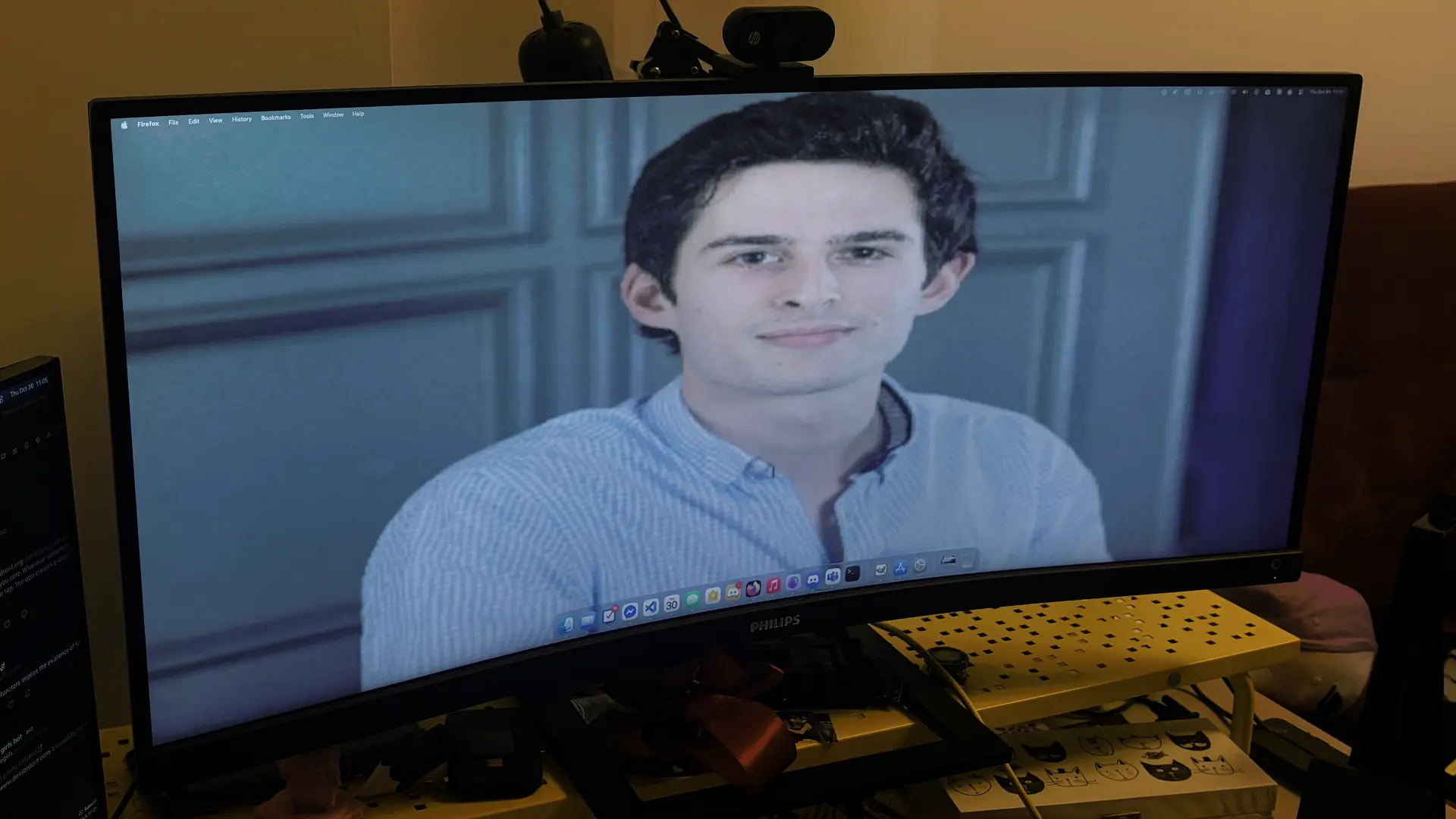
When I was upgrading my setup I made the (in hindsight, not very wise) decision to swap my good old trusty VGA-only 16:9 full HD LG monitor for a curved ultra-wide Phillips. I had a bunch of reasons at the time:
- I had been using multiple monitors in the past and really enjoy extra space for tiling windows
- I though it would be like having 2 monitors side by side but without the bezel in the middle
- It had a USB-C input and USB-A outlets, which would reduce the cable spaghetti on my desk
I was still relatively new to mac user space so I didn't know how much trouble it would give me.
So, I got this guy on some kind of sale and was overall satisfied with the image quality and experience until...
I locked the screen.
And then unlocked it.
And the monitor woke up
And the monitor turned off
And the monitor woke up
And the monitor turned off
And it did so a few more times which made me realize that something ain't right with it 
I think the mac wakes up the monitor but then it takes too long to respond so it turns off the display output which causes the monitor to enter stand by, which is a change on the video out, that makes the mac try to wake it up again and so on and so on.
Troubleshooting time
The USB-C cable I used was brand new and I got it with the monitor, so I assumed it should be the most compatible I can get. Still I tried connecting the monitor through HDMI but a similar thing happened.
The next obvious culprit could be drivers but that's not really a thing on macOS. I tried using 3rd party display control software (Lunar) none of the settings there were connected to this issue.
After a bunch of futile trial and error, I gave up and decided to just manually turn the monitor on and off every time I unlock the screen. 
Overengineering it
I grew tired of toggling it manually real quick, and started pondering a way to automate it. My first instinct was a servo pressing the switch, but this would require a microcontroller plugged into my mac and some kind of Rube Goldberg contraption to keep it in place. So instead I chose the Apple way™ and bought a smart outlet, the kind you can plug any electric appliance into and control from the Home app.
With the hardware acquired, all I needed now was the plug the monitor in and find a way to toggle it when the screen locks.
Luckily I found a tool that was perfect for this task, with a very fitting name: Hammerspoon 
Bodging something together out of stack overflow snippets I arrived at this:
-- init.lua
local log = hs.logger.new("", "info")

local function ok2str(ok)
    if ok then return "ok" else return "fail" end
end

hs.caffeinate.watcher.new(function(event)
    local eventName = hs.caffeinate.watcher[event]
    log.f("got caffeinate event:%s (id:%d)", eventName, event)

    local script

    if event == hs.caffeinate.watcher.screensDidLock then
        script = "${HOME}/.lock"
    elseif event == hs.caffeinate.watcher.screensDidWake then
        script = "${HOME}/.unlock"
    else
        log.f("ignored event:%s (id:%d)", eventName, event)
        return
    end

    local ok, st, n = os.execute(script)
    log.f("exec:%s -> %s, %s, %d", script, ok2str(ok), st, n)
end
):start()
.lock and .unlock are just bash scripts with shortcuts run "Monitor off" and shortcuts run "Monitor on" respectively, and each shortcut is just a Set Accessory action, controlling the outlet.
The Breakthrough
This weird system served me well for a month or so, though every now and then I accidentally killed Hammerspoon and had to crawl under the table to toggle the monitor back on. 
Then one day I wanted to see is using the side-by-side mode this monitor has would be better than the wide screen. At the time I also had a 2nd monitor plugged in on the side from my previous setup. The idea was that changing from an inconveniently wide screen into two 4:3-ish displays would be somehow better. Weird aspect ratios and duplicated status bars aside, it was functioning alright, but after turning the screen off and on it'd often mix up the order of the screens and worse yet - reset the resolutions.
While I was fiddling around with the cables, I've noticed a few interesting things:
- The HDMI cable I had previously tested with this monitor was faulty
- If the monitor was plugged in both through USB-C and HDMI the power cycle issue occurred
- When plugged in only through a different HDMI cable, stand-by mode worked perfectly as expected
With this groundbreaking, earth-shattering and absolutely mind-boggling discovery I finally had the monitor working at a level that my Linux PC could do out of the box 
Except...
now the monitor's USB ports were nonoperational 
Then my boyfriend came up with the smartest solution ever:
USB-C to USB-A dongle with a USB-A to USB-C cable
bada bing bada boom and it all works, save for the cable monster growing but who cares! 
The Holy Grail
Fast forward a month or so and we're moving flats. While I was setting up my new desk, I tried keeping the wiring as clean a possible (after all, it's a rare opportunity). Out of curiosity I gathered all the type C cables I could find in hopes that maybe, just maybe one of them would work.
Monitor's cable? Still broken.
iPhone cable? Nah, can't do video.
Drive cage cable? Surprisingly stand-by works but ports don't(?)
and then...
A comically short cable from an SSD drive. Perfect function, perfect length.
Turns out it's Thunderbolt 3 and I guess that was the missing link here. 